Memories - Guest Photo Sharing
Let your guests capture and share their favorite moments from your special day. The Memories feature allows guests to upload photos and videos via QR code or direct link, with full admin control over moderation and display.
How It Works
For Guests
- Scan the QR code at your event (or visit the direct link)
- Enter their name
- Upload photos and videos
- View and manage their uploads
- Browse the public gallery
For You (Event Host)
- Enable photo sharing in Settings
- Generate and print QR codes
- Review and moderate uploads
- Curate your event gallery
Getting Started
Enabling Memories
- Navigate to Memories from your event's top navigation
- Click Settings
- Toggle Enable Photo Sharing to ON
- Configure your preferences
- Save settings
Generating QR Codes
- Go to Memories in your event
- Click QR Code button
- Download the QR code image
- Print and display at your venue
Guests can scan the QR code with their phone camera to instantly access the upload page.
Upload Settings
Per-Guest Limits
Control how many files each guest can upload:
| Setting | Default | Range |
|---|---|---|
| Photos per person | 5 | 1-50 |
| Videos per person | 5 | 1-20 |
File Size Limits
Prevent oversized uploads:
| Setting | Default | Range |
|---|---|---|
| Max photo size | 10 MB | 1-50 MB |
| Max video size | 100 MB | 10-500 MB |
Supported File Types
Photos: JPEG, PNG, WebP, HEIC Videos: MP4, QuickTime (MOV), WebM
Moderation Options
Auto-Approve Mode
When Auto-Approve & Show All Uploads is enabled:
- All uploads appear in the public gallery immediately
- No manual review required
- Great for trusted events or smaller gatherings
Manual Approval Mode
When disabled:
- Uploads require your approval before showing publicly
- Review each photo/video before it appears
- Better control for larger events
Managing Your Gallery
Admin Dashboard
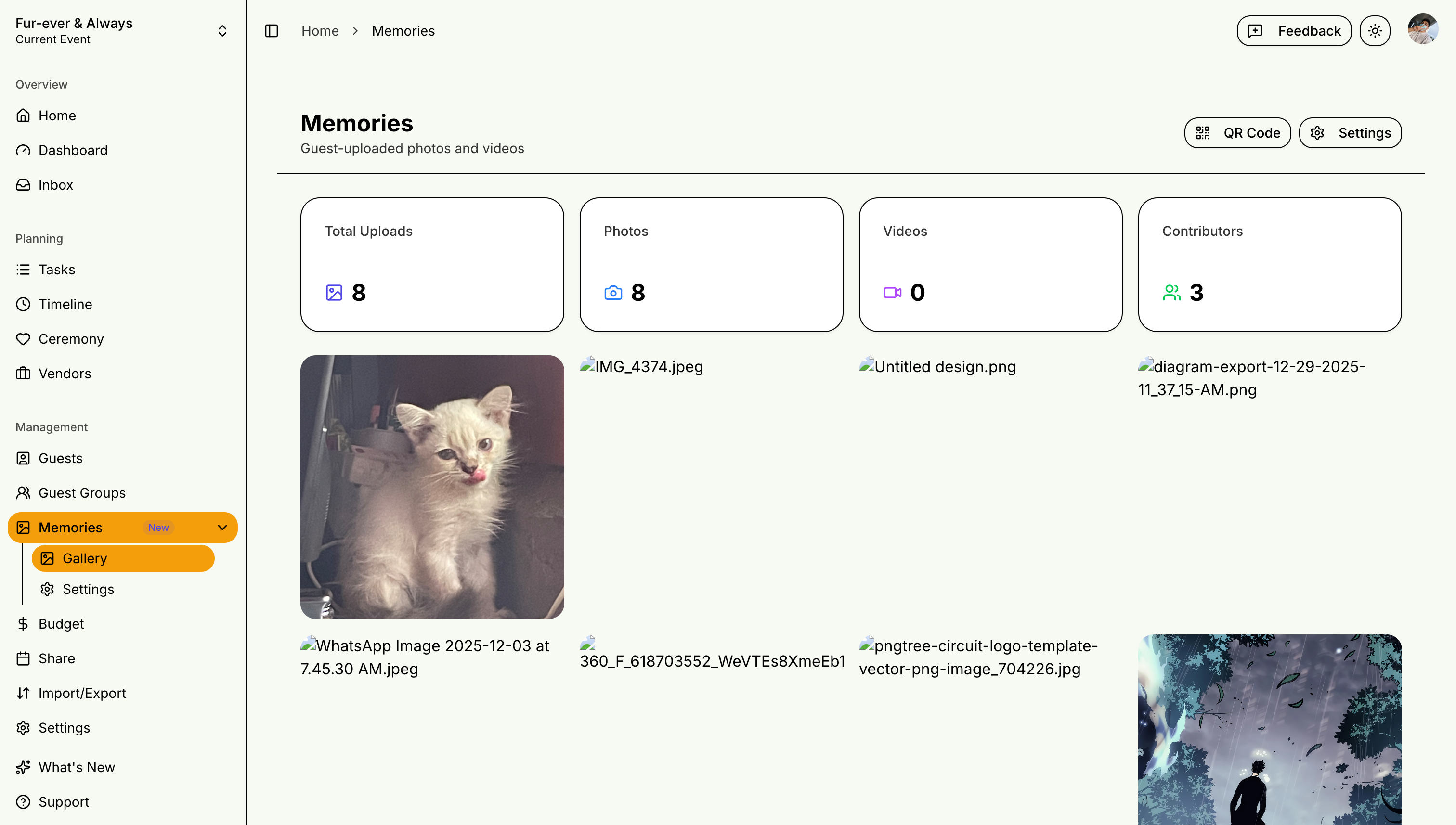
Your Memories dashboard shows:
- Total uploads - All photos and videos
- Photo count - Just photos
- Video count - Just videos
- Contributors - Number of unique guests who uploaded
Filtering Uploads
Filter your gallery by:
- Media type - Photos only, videos only, or all
- Status - Approved, pending, or all
- Visibility - Hidden or visible
- Uploader - Search by guest name
Moderating Content
For each upload, you can:
- View - Open full-size in new tab
- Download - Save to your device
- Approve - Mark as approved (manual mode)
- Hide/Show - Toggle public visibility
- Delete - Remove permanently
Guest Experience
Upload Page
When guests visit your upload link, they'll see:
- Your custom welcome message
- Simple drag-and-drop upload area
- Their remaining upload slots
- Preview of their uploads
Public Gallery
Guests can browse approved uploads:
- Responsive photo grid
- Full-screen lightbox view
- Infinite scroll for large galleries
- See who uploaded each photo
Custom Messages
Personalize the guest experience:
Welcome Message
Displayed when guests first visit the upload page. Example:
"Welcome to John & Jane's Wedding! We'd love to see your photos and videos from our special day."
Thank You Message
Shown after a successful upload. Example:
"Thank you for sharing your memories with us! We can't wait to see them."
Tips for Success
Before Your Event
- Enable Memories and configure settings
- Generate and print QR codes
- Place QR codes at tables, entrance, or photo booth
- Test the upload link yourself
During Your Event
- Announce that guests can share photos
- Point out QR code locations
- Have backup printed cards with the link
After Your Event
- Review and approve uploads
- Download favorites for safekeeping
- Share the gallery link with guests
- Hide any inappropriate content
Wedding Memory Tips
Popular QR Code Placements
- Reception table centerpieces
- Near the photo booth
- On the program/menu cards
- At the guest registration table
- Near the wedding cake
Capturing Key Moments
Encourage guests to photograph:
- Couple's entrance
- First dance
- Speeches and toasts
- Cake cutting
- Traditional ceremonies (coin, veil, cord)
- Candid family moments
Privacy & Security
- Uploads are anonymous (only display name required)
- You control what appears in the public gallery
- Individual photos can be hidden or deleted
- All uploads go through secure verification
- Rate limiting prevents abuse
Subscription Requirements
The Memories feature is available on STEVEN Plus plans and above. Upgrade your plan to unlock guest photo sharing.
Create lasting memories by letting your guests contribute their unique perspectives of your special day!