Layout Planner
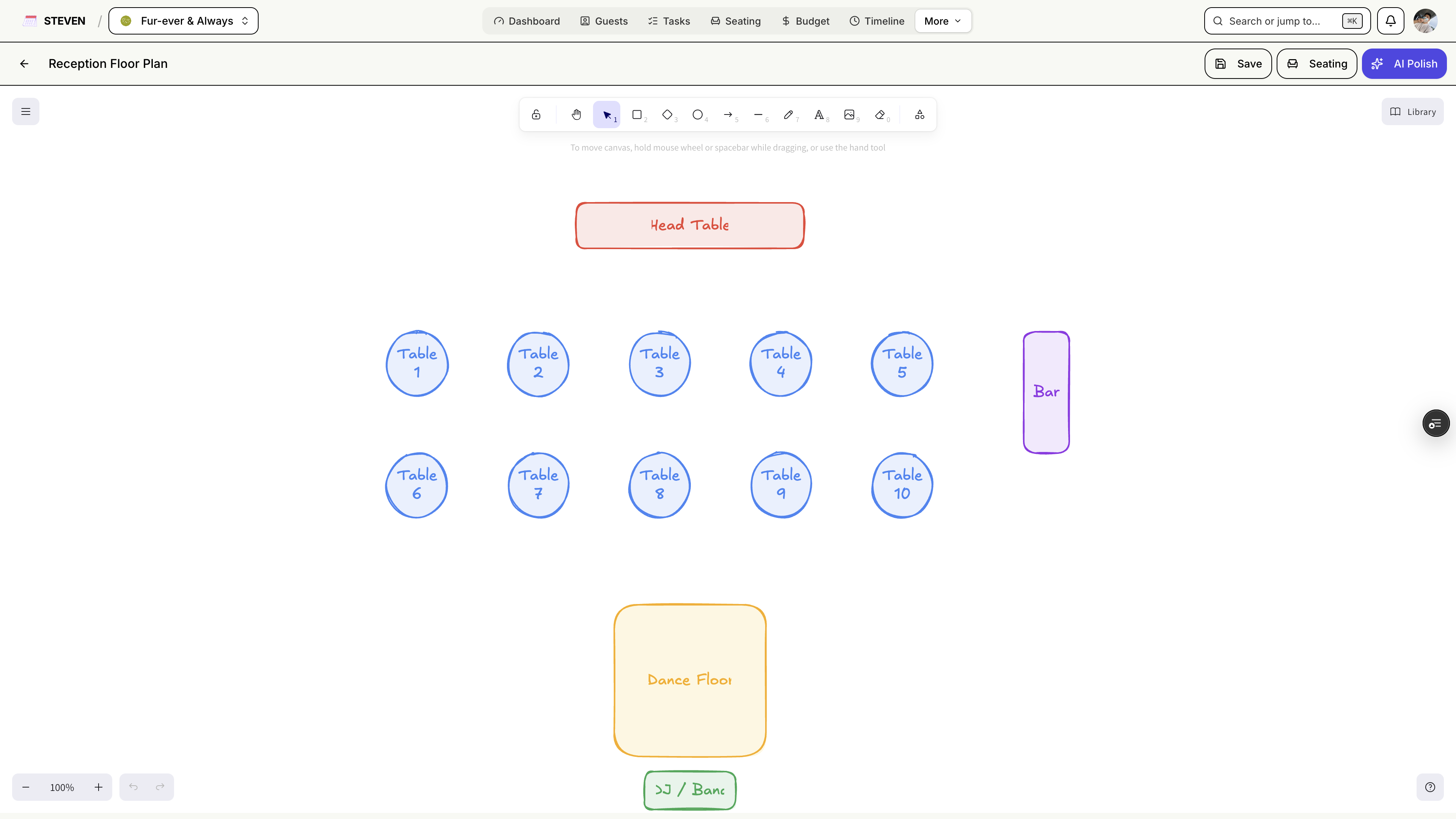
Sketch your venue, place your tables, and turn rough ideas into a polished floor plan. The Layout Planner is a full whiteboard canvas built into STEVEN.
Getting Started
Accessing the Layout Planner
- Click Layout Planner in your event navigation
- The whiteboard canvas is available on all plans, including free Starter
Multiple Layouts
Create as many layouts as you need — ceremony, reception, cocktail area — and switch between them from the layout list.
Designing Your Floor Plan
The Whiteboard Canvas
The planner is powered by an Excalidraw whiteboard:
- Draw walls, stages, dance floors, and tables freehand or with shapes
- Add labels and annotations
- Zoom, pan, and arrange elements freely
Templates
Don't start from scratch — pick a layout template and adjust it to your venue.
AI Generate
Describe your venue and let STEVEN generate a starting layout for you, then refine it on the canvas.
AI Polish
Turn your working sketch into a presentation-ready floor plan:
- Open your layout and choose AI Polish
- STEVEN's AI renders a clean, professional version of your floor plan
- Use it for vendor briefings, venue coordination, or printed signage
AI Polish requires a paid plan (STEVEN Plus or Pro) and uses AI credits from your plan's allowance (Plus: 30, Pro: 100 per 30 days).
Syncing Tables to Seating
Once your tables are placed, sync them to the Seating page to start assigning guests. Your floor plan and your seating chart stay consistent.
Subscription Requirements
| Capability | Plan |
|---|---|
| Whiteboard canvas & templates | All plans (including free) |
| AI Generate & AI Polish | STEVEN Plus or Pro (uses AI credits) |
| Sync tables to Seating | STEVEN Plus or Pro (Seating is a paid feature) |
A clear floor plan makes the day run smoothly — for you, your vendors, and your guests!