Collaboration
Event planning is a team sport. Invite your partner, family members, coordinator, or clients to manage the event with you — everyone works from the same live data.
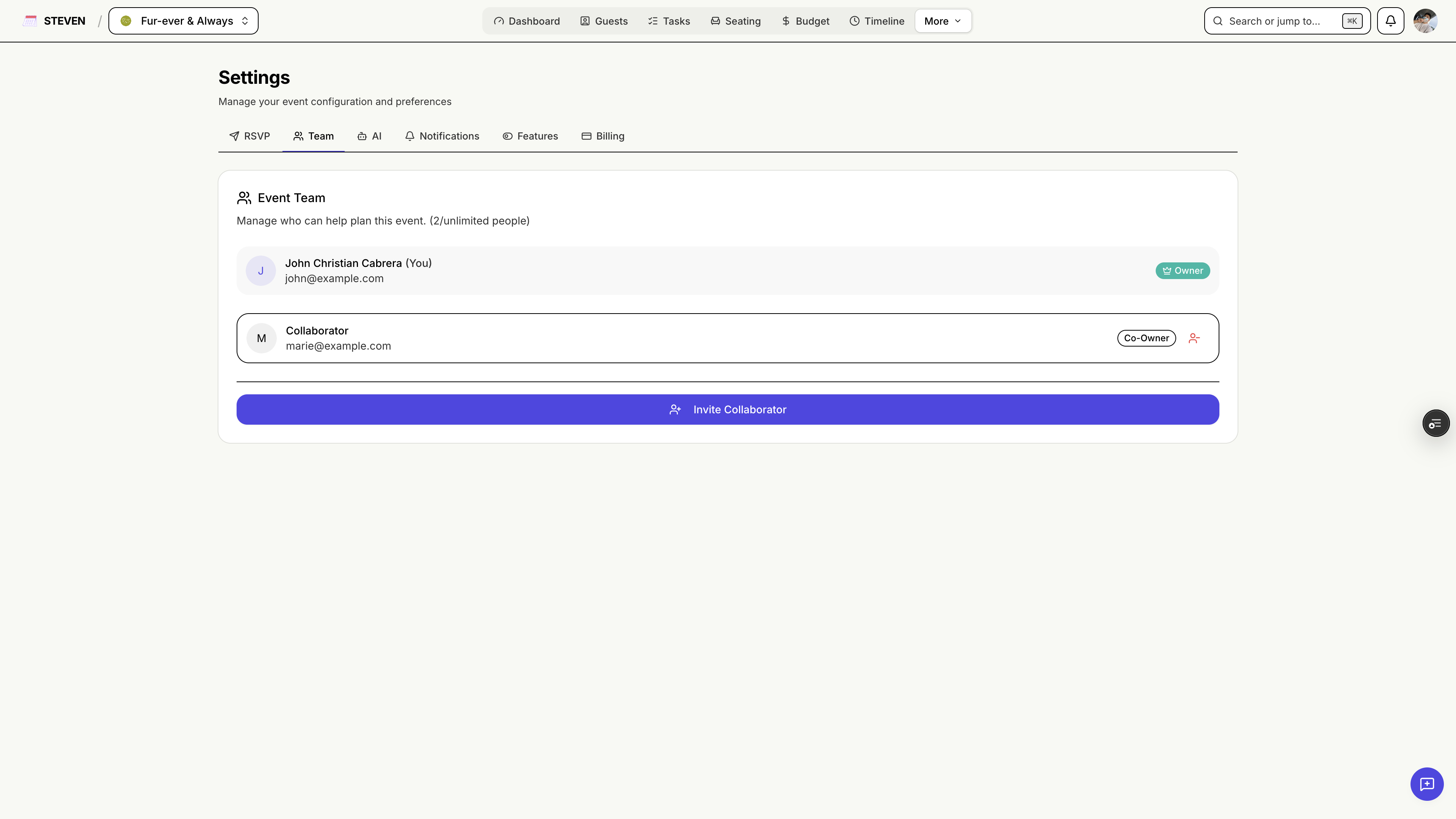
Getting Started
Requirements
- Collaboration requires a paid plan (STEVEN Plus or Pro)
- Both plans allow up to 4 collaborators per event (plus you, the owner)
Inviting a Collaborator
- Go to Settings → Team in your event
- Enter the collaborator's email address and send the invite
- They receive a secure invitation link by email
- Once they accept, they immediately see the event in their account
Managing Invitations
- Resend an invite if it got lost
- Revoke a pending invite before it's accepted
- Remove a collaborator at any time (owner only)
What Collaborators Can Do
Collaborators get full access to plan alongside you:
- Manage guests, groups, and RSVPs
- Track budget and log expenses
- Create and complete tasks (and be assigned tasks)
- Manage vendors, timeline, seating, and ceremony details
- Use Ask Steven (except bulk guest adding, which is owner-only)
All changes sync in real time across everyone's view.
Owner-Only Actions
A few things stay with the event owner:
- Inviting and removing collaborators
- Billing and subscription management
- Deleting the event
- Bulk guest adding via Ask Steven
Leaving an Event
Collaborators can leave an event at any time from Settings → Team. Leaving doesn't delete any data — the event stays with its owner.
Subscription Requirements
| Plan | Collaborators (besides owner) |
|---|---|
| STEVEN Starter | Not available |
| STEVEN Plus | Up to 4 |
| STEVEN Pro | Up to 4 |
Many hands make light work — especially when they're all looking at the same plan!