Guest Groups
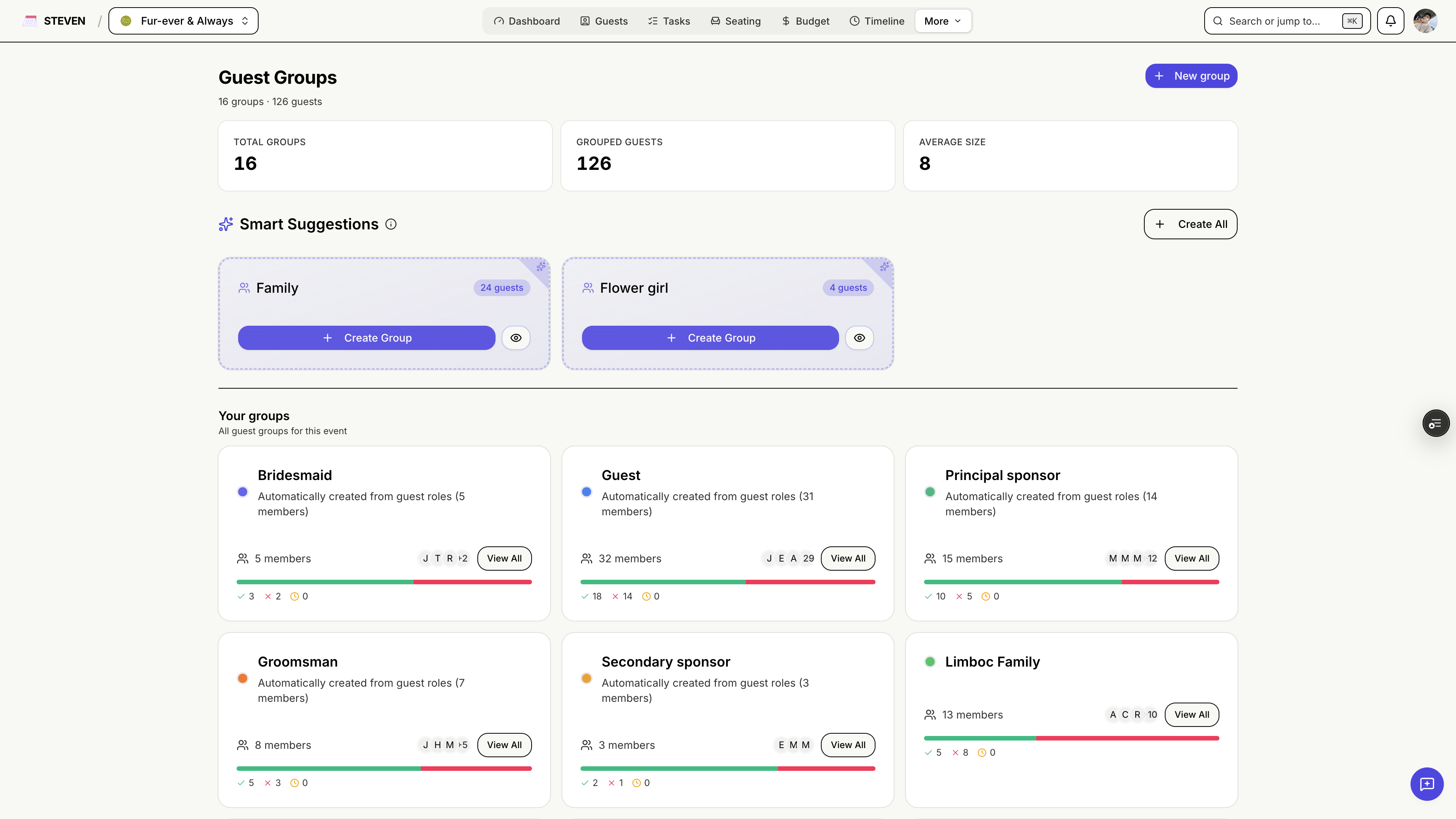
Group related guests — families, barkadas, work colleagues, the church choir — so you can track and manage them together.
Getting Started
Accessing Guest Groups
- Click Guest Groups in your event navigation
- Or assign a guest to a group directly from the guest dialog on the Guests page
Creating Groups
Add a Group
- Click Create Group
- Give it a clear name (e.g., "Bride's Cousins", "College Friends")
- Pick a color to identify the group at a glance
- Save
Managing Members
- Add or remove members from the group's detail view
- Guests can also be assigned to a group when you add or edit them individually
- STEVEN suggests roles to help you group guests consistently
Per-Group RSVP Stats
Each group card shows its own RSVP breakdown:
- Attending — confirmed members
- Pending — still waiting to hear back
- Declined — members who can't make it
This makes follow-ups easy: see at a glance which family or circle hasn't responded and chase the whole group at once.
Why Use Groups?
- Follow-ups: contact a whole family through one person
- Seating: groups make natural table assignments — see Seating
- Headcounts: track attendance per side, per family, or per circle
Guests come in groups — plan that way!